How to Enter Notes for a Restricted Access Location

This guide provides step-by-step instructions on how to update an entry for a restricted access location. Following this guide will ensure that anyone viewing the Whereabouts has the necessary information to access the location.

When Creating a New Location in a Whereabouts Entry

Click here for steps on how to update an existing location in the address book.

1. Log into Athlete Connect and navigate to the Home screen.

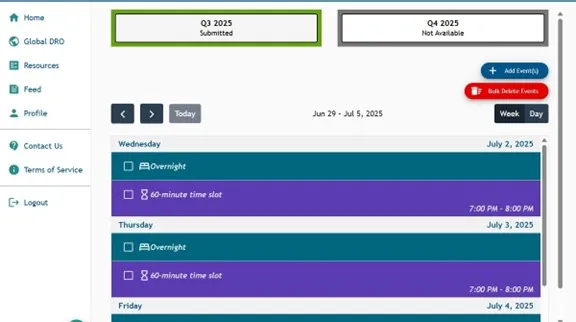
Athlete Connect home screen calendar.

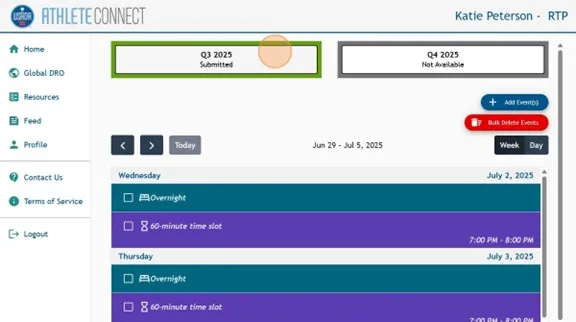
2. Click on the button indicating the relevant quarter.

Athlete Connect home page with highlight over relevant quarter button.

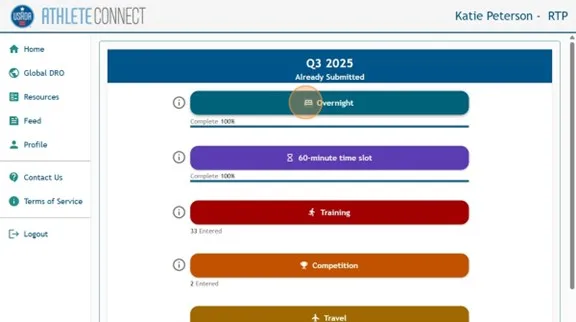
3. Select the type of entry that you would like to create. For this example, we will be creating a restricted access Overnight entry, but these steps can be used for any entry type.

Athlete Connect list of different entry types to select, including "Overnight."

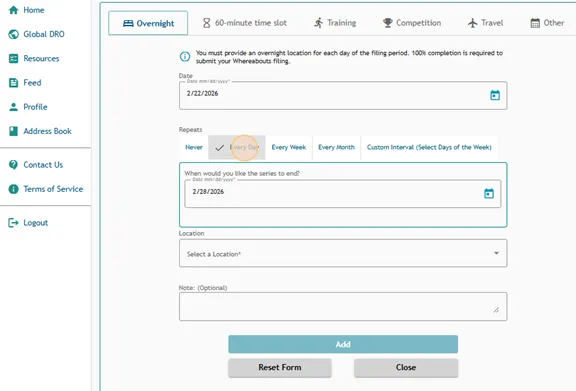
4. Using the information provided on how to file the entry type, select the start date that you would like this entry to apply to, along with the option that best applies to the entry under “Repeats”.

Athlete Connect Overnight entry highlight on the Repeats options.

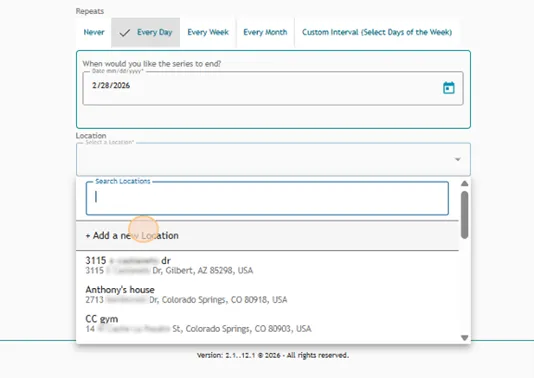
5. Select the option to “Add a new Location.”

Athlete Connect overnight entry location field.

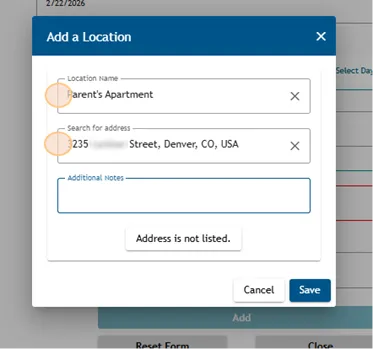
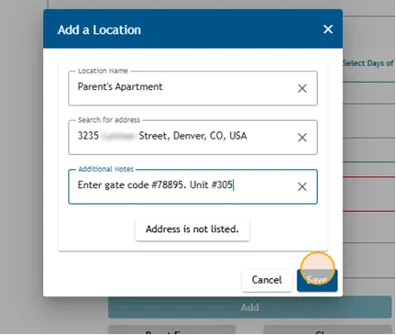
6. Add a location by entering the Location Name and the address. You can search for the address or click “Address not listed” to manually add the address.

Add a Location pop-up in Athlete Connect with highlights over the Location Name and Search for Address fields.

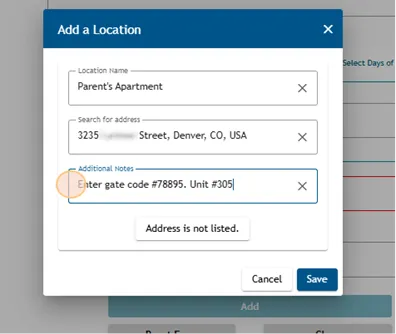
7. For restricted access entries, it is critical to input any access-related information in the “Additional Note” field of the location. This must include all information necessary for a Doping Control Officer to locate you at the listed address without relying on advance notice (e.g., a phone call).

Examples of the type of information to include in the “additional note” field:

  • Apartment, unit, or hotel room number
  • Gate access code
  • Building or dorm name and/or number
  • Building code
  • Building or leasing office hours
  • Security or front desk information and/or phone number
  • Housing or dorm manager contact information
  • Location directions (e.g., around the side of the house to the cottage at the back)
  • Requirements for accessing the location (e.g., key fob or elevator key are required)

Note: It is important to ensure your name or unit is listed correctly on any call box or buzzer systems and that your unit or door is clearly labeled. You should also notify your dorm or building front desk or security that you are a tested athlete and that DCOs may arrive at any time to reach you.
Add a Location pop-up in Athlete Connect with a highlight over the "Additional Notes" field.

8. Once you have confirmed all information as correct, click “Save.”

Add a Location pop-up in Athlete Connect with a highlight over the Save button.

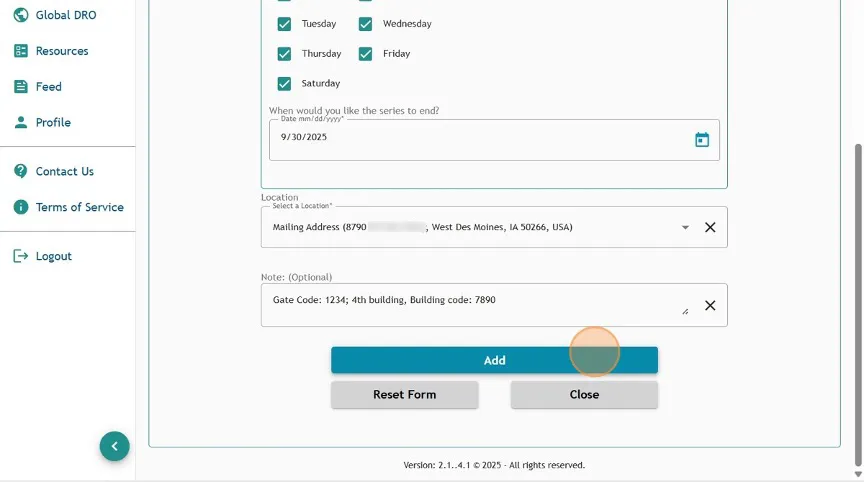
9. Once you have confirmed the entry is correct, click “Add.”

Athlete Connect entry screen example with a highlight over the "Add" button.

10. Confirm the information has been saved correctly before navigating away or closing the application.

When Updating an Existing Location in the Address Book

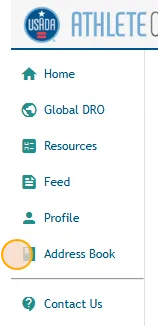
1. Log into Athlete Connect and navigate to the Address Book.

Athlete Connect side bar with a highlight over the Address Book option.

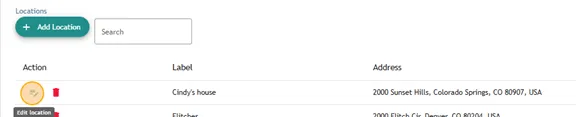
2. Click the edit pencil of the address you would like to update with additional location notes.

Athlete Connect address book screen with highlight over the edit pencil next to an existing location.

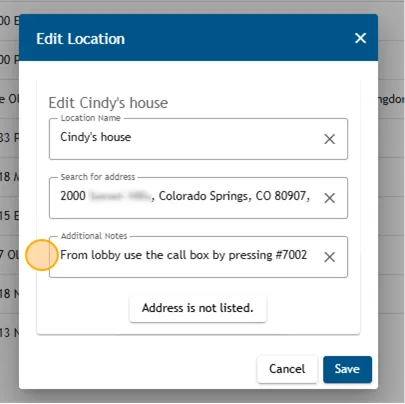
3. For restricted access entries, it is critical to input any access-related information in the “Additional Note” field of the location. This must include all information necessary for a Doping Control Officer to locate you at the listed address without relying on advance notice (e.g., a phone call).

Examples of the type of information to include in the “additional note” field:

  • Apartment, unit, or hotel room number
  • Gate access code
  • Building or dorm name and/or number
  • Building code
  • Building or leasing office hours
  • Security or front desk information and/or phone number
  • Housing or dorm manager contact information
  • Location directions (e.g., around the side of the house to the cottage at the back)
  • Requirements for accessing the location (e.g., key fob or elevator key are required)

Note: It is important to ensure your name or unit is listed correctly on any call box or buzzer systems and that your unit or door is clearly labeled. You should also notify your dorm or building front desk or security that you are a tested athlete and that DCOs may arrive at any time to reach you.
Athlete Connect "Edit Location" pop-up with highlight over the "Additional Notes" field.

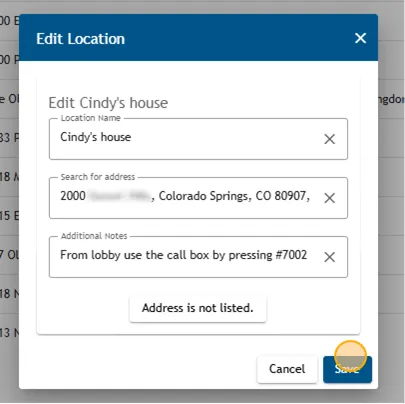
4. Once you have confirmed all information as correct, click “Save.”

Athlete Connect "Edit Location" pop-up with highlight over the Save button.

5. These notes will now be included every time you choose this location in your entry (e.g., overnight), and your existing entries with this location will be updated with the note.

6. Confirm the information has been saved correctly before navigating away or closing the application.

Back to Top