How to Add a Location Not Found in the Search Bar

This guide provides step-by-step instructions on how to manually input and save event locations in Athlete Connect. Entering address details and specific site coordinates with ensure your Whereabouts are accurately recorded.

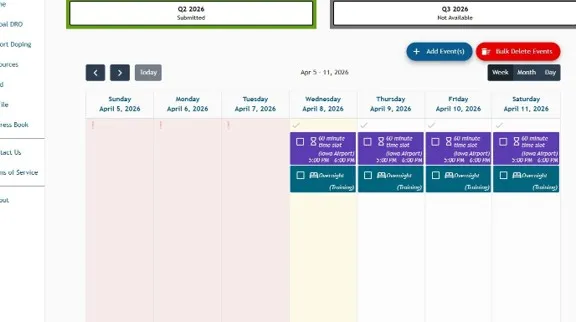
1. Log into Athlete Connect and navigate to the Home screen.

Screenshot of the Athlete Connect application home screen.

2. Click “Add Event(s)” or click into an entry you would like to add a new address to via the calendar. The same steps can be followed directly through the address book to add a location as well.

The Athlete Connect app home screen with a highlight over the "Add Event" button.

3. Click on “Select a Location.”

A new overnight entry in Athlete Connect with a highlight over the "Location" field.

4. Click “+ Add a new Location.”

A new overnight entry in Athlete Connect with a highlight over the "+Add a new Location" drop down option under the "Location" field.

5. In the case the address you are attempting to add cannot be found in the “Search for address” option, click “Address is not listed”.

The "Add a Location" pop-up in the Athlete Connect app with a highlight over the "Address is not listed" button.

6. Input all applicable and required information in the field options for the address. For the “Address”, if there is no exact typical address associated with the location, you can enter in the closest location possible with more information in the “Notes” or “Address 2 (Optional)” section or enter the location coordinates under “Address”.
The "Add a Location" pop-up in the Athlete Connect app with a highlight over the "Country" field.

7. Include additional information in the “Additional Notes” section that would assist Sample Collection Personnel (SCP) in locating you at this location if needed. Example: “Tent camping at coordinates:…”. Then, click “Save.” Notes entered with the location itself will be saved and included in each entry where that location is reported.

A highlight over the "Save" button in the "Add a new location" pop-up in the Athlete Connect app.

8. Once the address is saved, you can enter in any additional information or notes about the entry or your time at this location. Notes entered in the entry are not saved with the location and remain only with the specific Whereabouts entry.

A highlight over the "Notes (Optional)" field of a new entry in the Athlete Connect app.

9. Verify everything looks correct, then click “Add”. This new address should now be added to your Address Book for your account and should be an option for you to select from the Location drop down menu when creating or editing entries in the future.

A highlight over the "Add" button of a new entry in the Athlete Connect app.
Back to Top